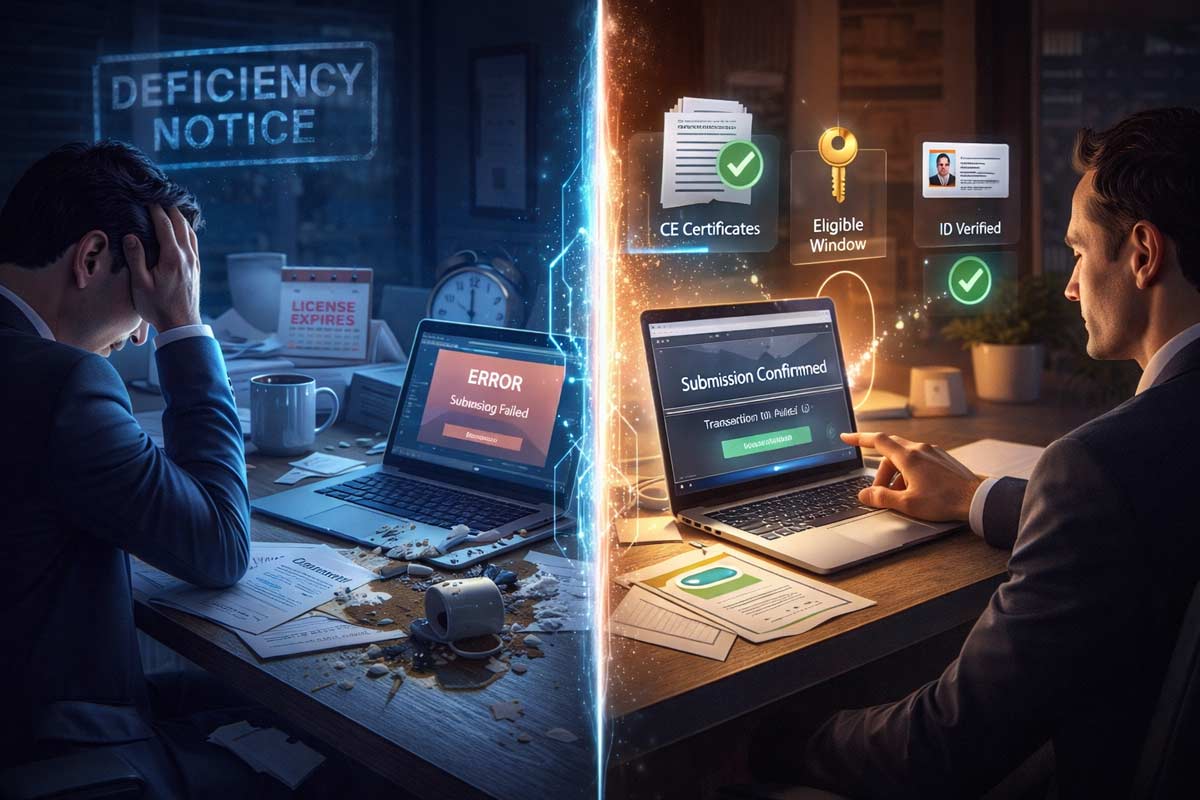
An expired real estate license is a total freeze on your ability to earn commissions.
If your license isn’t active, you can’t represent clients—period.
The goal of this guide is to move you from "almost expired" to "renewed" with the cleanest submission possible. This is your operational roadmap.
Before You Hit Submit: The 4 Gatekeepers
Do not start your application for license renewal on eLicensing until these four things are true. Most renewal delays happen because agents submit before their records or documents are actually ready.
- Confirm Your Eligibility Window: The DRE opens renewal only within an eligible window (typically 90 days before expiration). The eLicensing portal is the source of truth—if the "Renew" option isn't available in your profile, you aren't eligible to submit yet. Keep in mind that you can complete the CE courses anytime in the four years preceding expiration, but the application can’t be submitted until at least 90 days prior to expiration.
- CE Proof in Hand: Have your Continuing Education (CE) completion certificates ready. You must verify that the provider numbers, course identifiers, and completion dates match exactly what you will enter. When you take the courses through ADHI Schools, the course completion certificates will start with 6404 for each CE course. For a full list of required courses, refer to our Checklist for Renewing a California Real Estate License.
- Record Alignment: Ensure your legal name and contact details on file match your current identification. Even small mismatches (name formatting, address changes, or a stale email) can slow the file and trigger a manual review.
- Broker Readiness (Salespersons Only): Confirm your broker or office manager knows they must approve the renewal inside their own portal. Your application is not considered "complete" by the DRE until your broker takes this step.
At-a-Glance Submission Checklist
- ✅ Eligible window visible in eLicensing
- ✅ CE completion certificates (PDFs) open on screen
- ✅ Name and contact details match your DRE record
- ✅ Salespersons: Broker notified and ready to approve
Takeaway: If any of these are off, fix them first. Submitting incorrect data is the fastest way to get your license stuck in the DRE’s manual review pile. See our guide on California Renewal Mistakes to avoid common "stuck points."
The Clean Submission Sequence
Step 1: Gather Your Renewal Packet
Organize these inputs before opening the eLicensing portal:
- Your CA license number: Use the number exactly as shown in your DRE profile.
- CE Certificates: Specifically the provider numbers and course identifiers exactly as shown on your certificates.
- Payment Method: A valid credit or debit card. (To plan your budget, see How Much Does It Cost to Renew a CA Real Estate License?).
- Broker Info (Salespersons): Your responsible broker’s license number and email.
Step 2: Choose Your Channel
- Online (eLicensing): The standard path. Provides the fastest processing and immediate confirmation.
- Mail Submission: Use only when the portal requires supporting documentation or your situation is not supported online. If you mail it, use a trackable service (USPS Tracking, FedEx, or equivalent).
Step 3: The Portal Walkthrough
- Access: Log into eLicensing.
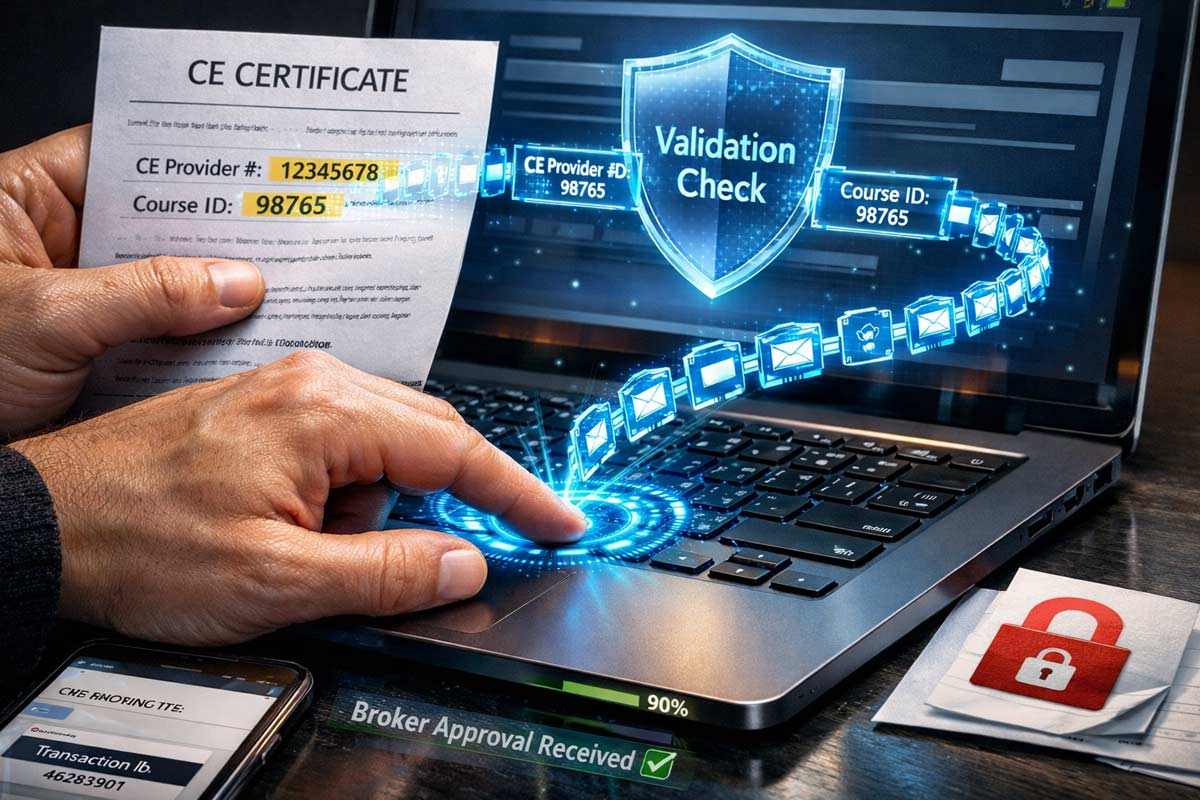
- Data Entry: Do not retype from memory. Copy the identifiers and provider numbers directly from your PDF certificates. Even a minor typo in a course ID can stall verification and trigger a deficiency or manual review.
- Validation: Review the summary page carefully before clicking through to payment.
Salesperson Alert: Your renewal is NOT complete until your broker signs in to their own portal and approves your application. Confirm with your broker or office manager that this step is finished immediately after you submit.
Step 4: Payment and Recovery
The DRE portal can be temperamental. To avoid double charges:
- Click "Submit" only once.
- If the screen freezes, wait a couple of minutes before refreshing.
- Recovery Step: If you are unsure if it went through, log out, log back in, and check for a confirmation or receipt before attempting a second payment.
Step 5: Your Paper Trail (Non-Negotiable)
Portals glitch and emails disappear. Your paper trail is your insurance policy if there’s ever a question about what you submitted and when.
- Screenshot the final confirmation page with the transaction ID.
- Download the PDF summary of the application you just filed.
- Archive the email receipt. You may need these while waiting for the record to update. See How Long Does It Take to Process a CA Renewal? for typical wait times.
What Happens After You Submit
- Tracking Status: Use eLicensing as your primary status tracker to see if the application is "Pending" or "Processed."
- Downstream Confirmation: Use the Public License Lookup as the final confirmation once the record officially updates with your new expiration date.
Your goal state is a "renewed/processed" status in eLicensing and an updated expiration date on the public lookup.
When to Escalate
- If you are >14 days from expiration: Check eLicensing every 48 hours. It is normal for the update to take a week or more.
- If you are <7 days from expiration: If your status hasn't updated to "Renewed," follow this triage ladder:
- Confirm broker approval has been completed in their portal (Salespersons).
- Verify your transaction ID and receipt exist.
- Check your email and portal for any "Deficiency Notices."
- Contact the DRE at 877-373-4542 with your transaction ID in hand.
When Things Go Wrong: Triage Protocol
| PROBLEM |
IMMEDIATE ACTION |
DOCUMENTATION REQUIRED |
| CE Not Found |
Confirm provider/course ID matches certificate. |
PDF certificate + Transaction ID + Status screenshot |
| Payment Failed |
Check bank; do not resubmit yet. |
Bank proof + Transaction ID + Error screenshot |
| Broker Not Signing |
Confirm broker completed approval in their portal. |
Email thread + Transaction ID + Status screenshot |
| No Confirmation |
Check spam and eLicensing "Saved" bin. |
"Saved" bin screenshot + Bank pending status |
FAQ: Submission-Specific Questions
How do I know if my online submission actually went through?
You are finished only when you receive a receipt/confirmation and a transaction ID. If you only filled out the forms but didn't reach the final confirmation, your renewal is not active.
What is a common reason renewals get rejected?
Incorrect CE entry. If you enter the wrong course identifier, the DRE cannot verify the credits, and the application stalls.
Should I mail my application if I am within 48 hours of expiration?
No. Mail is significantly slower. eLicensing is your path for a "timely" renewal especially when you are down to the wire.
What if I made a mistake on my CE entry after I submitted?
Don’t submit a second application. Follow any deficiency notice instructions, or contact the DRE with your transaction ID to correct the record.
Strategic Next Steps
If you are within 7 days of expiration, do this now:
- Confirm your CE certificates are downloaded.
- Verify your Broker's license number and email.
- Complete the eLicensing flow immediately.
For the full system, see our California Real Estate License Renewal Guide.
Explore our deep-dive resources: